Showing posts with label Features of ios7. Show all posts

Tuesday, July 23, 2013

Install / Run iOS 7 Beta without UDID / Developer account

How to install iOS 7 beta without UDID activation / without developer account? Well, after the release of iOS 7 beta 1 many iUsers who can't wait for the public release of iOS 7 asking us to show them how to upgrade to iOS 7 beta to test the new features on their iDevices. The below instructions will show you how to upgrade to iOS 7 beta without having Apple developers account or UDID activations.
Requirements:

- Download iOS 7 Beta
- Download iTunes

How to install iOS 7 Beta without UDID / Developers account:

Step 1: Launch iTunes and connect your iPhone with your PC via USB cable.

Step 2: Right click on your iDevice on iTunes and take a backup (or backup to iCloue)

Step 3: Restore your iPhone to iOS 6.1.3 (or 6.1.4 if you have iPhone 5)

Step 4: Set up as new iPhone - do not restore from backup.

Step 5: Hold down the Option key in OS X (Windows use Shift key) and click on “Update” not on "Restore"

Step 6: Select the iOS 7 beta file you downloaded, updating the device to iOS 7 beta. Done

What’s new in iOS 7 Beta 3 Build 11A4414e

download ios 7 beta 3 What’s new in iOS 7 Beta 3 Build 11A4414e
Apple just recenly released iOS 7 Beta 3, as expected by famous developer iH8sn0w. This iOS 7 beta 3 brings many new performance improvements and bugs fixes which were found in previous version of iOS 7 beta 2. iO7 beta 3 supported devices iPhone, iPod touch, and iPad.
What’s new in iOS 7 Beta 3:
-Faster and more reliable than previous releases (of course)
-Minor UI changes in Notification Center (new font)
-Minor UI changes in Music app (new font)
-Minor UI changes in Weather app (new font)
-Larger status bar items on Lock screen
-Calendar app now shows scheduled events on monthly view
-New search bar and pull-to-refresh animation in Mail app
-Folders now appear more transparent
-New icon animations when downloading an app
-New font in Settings app
-New font and font color in Messages app
-New animation when accessing Spotlight search
-Minor UI tweaks in Safari search (new keyboard for unibar search)
-You can now use apps while they’re updating
-Lock screen now shows clock while playing a song
-New animation when compressing video to be shared
-.com key in Safari’s unibar keyboard is finally gone
-New Top Charts icon in the App Store
-Boot up no longer shows spinning wheel
-Brightness and Wallpaper page have been updated with iOS 7 UI
-Now Playing track now displayed fully in Music app
-You can now pinch-to-zoom in Music app while in landscape mode
We will soon provide you the iOS 7 beta 3 download links. Please stay tune with us. If you would like to have iOS 7 beta 3 running on your device, please click here.
Update #1: iOS 7 Beta 3 is now available for free download. Click here

Five More Hidden Features In iOS 7 Beta [Feature]

iOS 7 Official Apple
iOS 7 beta has a ton of new features, tricks, hidden things, and ways to get stuff done. We’ve beenshowing it all to you as we delve into the latest and greatest mobile OS for iPhone, iPad and iPod touch for a few weeks now.
But we’re not ready to stop. Here are even more (five of ‘em!) secret, hidden, or just plain surprising features we’ve found in iOS 7 beta.

Make Audio-Only Facetime Calls

facetime audio-only
Facetime is Apple’s video conferencing solution, offering high-quality video chat across any iOS or Mac device. It simply blows away any other solution I’ve tried in terms of quality and ease of use, but it’s always been a video-only proposition, leaving me sticking with Skype for audio-only voice chats.
With iOS 7 beta, however, Apple has given us the ability to make audio calls with Facetime as well, which may cause me to ditch Skype altogether (though there’s still a cross platform ability Skype wins).
Here’s how to make audio calls to other Apple users via Facetime.
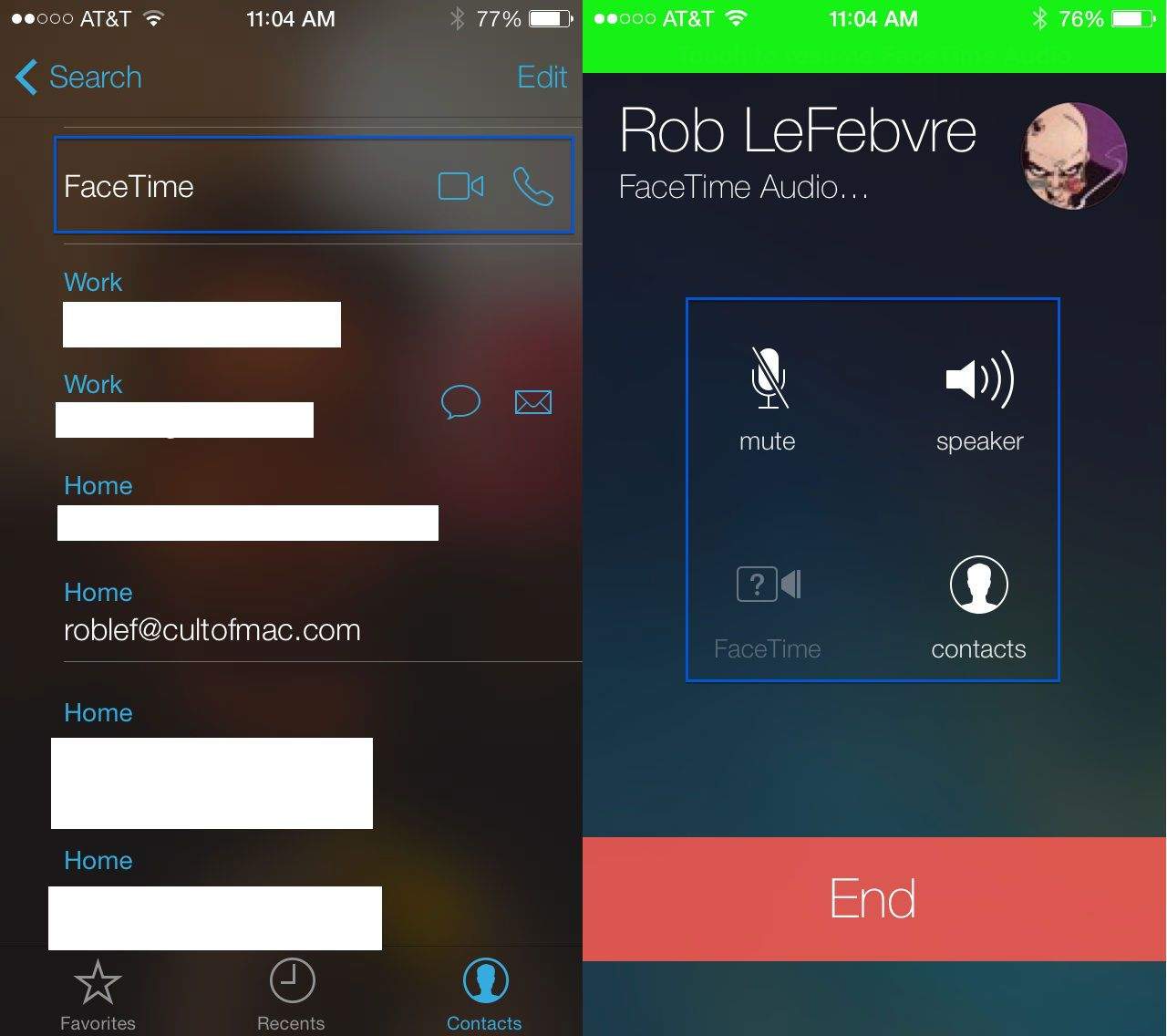
Launch the Facetime app on your iPhone with a tap, and then tap on the Contacts button in the lower right. A list of all of your iOS contacts will show up, and you can filter them by typing in the Search field at the top.
Once you’ve found the contact you wish to chat with, tap on their name and then look for the Facetime section. You’ll now see a videocamera icon, as per usual, with a new telephone handset icon, all overlaying the camera input from your iPhone, blurred out in the background. Tap the phone handset icon to begin an audio-only call with your friend.
While in the audio chat, you’ll be able to mute your microphone, put your friend on speaker phone, switch to a video chat, or find other contacts, all from the main in-call screen. When you’re done, simply hit the red End button at the bottom and you’re done!

See Timestamps For iMessages

Messages Timestamp iOS 7 beta
In previous versions of iOS, the date and time stamps of iMessages you sent and received were printed right in the app, above the iMessages they pertained to.
Not so in iOS 7, with only a date stamp showing up at the top of each segment of messages that come in on a particular day. If you want to know what time those messages came in or were sent, it looked as if you were out of luck.
But wait! There’s more! Turns out that you can, in fact, see a time stamp for every message in the Messages app. Here’s how to access it.
To see when you sent or received those iMessages, simply launch your Messages app with a tap, and then find the Message thread you want to look at.
Tap on the name of the person in the iMessages list, and when the message thread opens up, swipe from the right side of your iPhone screen towards the left, and the timestamps will reveal from the right side of your screen.
Slick, right?
Now you can know just when you sent that special message, or got that special picture from that special someone. It’s a step up from the approximate timestamps from iOS 6, as each incoming or outgoing message now has a specific to-the-minute timestamp.
Just use this new power responsibly, ok?
Thanks, Michael K!

Use The New App Store Wishlist Feature To Manage Your App Wants

iOS 7 Wshlist Splash
I’ll admit it. I really like buying things. I don’t like searching for them, or shopping per se, but I dig the heck out of wanting something, and then buying it. Go figure I end up a tech writer.
One of the ways I keep myself from overspending is to take pictures of items and store them on my iPhone. I do this a lot in book stores, where the number of new science fiction books I want far outstrips my ability to pay for them.
I use a Wishlist on Amazon, too, to track the stuff I want, perhaps later to actually purchase. Who knows?
In iOS 7 beta, you can add any apps you want to a new Wishlist feature, keeping the spending to a minimum, too. Here’s how.
First up, launch the iOS App Store and find an app you really want, but which costs too much for you to just hit the buy button. Note that you can’t add any apps you already own, nor free apps, to the Wishlist in the current iOS beta.
Once you find that app, and tap through to its main detail page, tap on the Share button in the upper right corner, now in iOS 7 it looks like a rectangle with an arrow pointing straight up out of it.
Once you tap that Share button, you’ll be able to send a link to AirDrop, via Messages, Mail, Twitter, Facebook, as a Gift, or just copy the link. If it’s a paid app you don’t own, you’ll also see the option to add to Wishlist, represented by a magic wand for some reason.
Tap the Add to Wishlist button, and a tiny little image of the app’s icon will swoop up to the little Wishlist icon in the upper right hand corner of the screen. Tap on to that little icon, which looks like a bullet list, and you’ll access your Wishlist, complete with the new one you just sent there. Boom!
Now you can “shop” without buying stuff. Hooray!

Enable And Manage New ‘Today’ View On Your Lock Screen

Notifications Today View
iOS 7 beta has a great new feature in the Notification Center system called Today. This is an attempt, perhaps, to counter Google Now with more useful current information available to you right on your iPhone or iPad’s lock screen.
You can enable the Summary, Traffic Conditions, Day View, Reminders, Stocks, and Tomorrow’s Summary right in the Notification Center, and make it available right on your lock screen, without having to type in your security passcode.
Here’s how to enable, and then manage, this new feature in iOS 7 beta.
First, launch your Settings app with a tap, and then tap into the Notification Center section. Once there, toggle ON the Notifications View and Today View in the upper Access On Lock Screen Section. Green is ON, white is OFF. If you just want the Today view on the lock screen, leave it ON, but toggle Notifications View OFF. That’s how I have mine set, as I really don’t need all my notifications when the screen is locked, but I do want current info at the ready.
Then, under the Today View section, toggle the info you want to see in the Today view altogether, whether or not you have it set to show in the lock screen. That way, when you swipe from the top of your iPhone or iPad downward, you’ll be able to see just the info you want to see in the Notification Center. I have them all set to ON, with the exception of the Stocks information, because I’m too poor to even bother with those.
Now you have a bit more control over what you see and when you see your Today view notifications. Aren’t you glad you came by?

Add A Custom Station To iTunes Radio

stations
iTunes Radio is here – and it’s looking pretty cool. One of the more Pandora-like options in iTunes Radio is the ability to create a station based on your favorite artist or song, and even mix and match artists for a custom bunch of songs you can play uninterrupted, like, well, radio. You can even tell iTunes Radio what songs or artists not to play in the mix, as well as manage which types of songs (Top Hits, Mix, Discovery) from each artist to play.
Here’s how to add a new artist or song to iTunes Radio in iOS 7 beta.
Launch your Music app with a tap on your iOS 7 beta device, and then tap on the Radio icon in the lower left corner. You can choose from one of the predefined stations at the top, like “Artists Currently On Tour,” “If you like Justin Timberlake,” “Best of the iTunes Festival,” and more.
To create a custom station, tap the big pink Plus sign above the words, “Add a station.” You can choose a genre from the list that shows up, or you can type in an Artist, Genre, or Song in the text field at the top. Once you type in your chosen artist, you’ll see that artist’s Radio station. Tap on it in the search results, and iTunes Radio will just start playing.
To edit the station, tap the Edit button on the main iTunes Radio page. You’ll go to the Edit Stations page, where you can tap on a Station to edit it. You can also add a New Station from this screen.


You can change the name of the station at the top, add a new Artist, Song, or Genre to add some variety and depth to the station. Just tap the plus button above the current Artist or Song info. In a brilliant piece of design, you can also tap the Never Play This plus button, keeping stuff you hate hearing from your carefully designed station. Because, honestly, who wants to hear butt rock when you’re trying to listen to Led Zeppelin? Not me.

Thursday, June 20, 2013

Best features of ios 7

design_functional_gallery1

Users of Apple’s iPhone, iPad and iPod touch devices got their first look at the company’s newest operating system, iOS 7, earlier today. Not only has Apple given iOS an entirely new look and feel, courtesy of head designer Jonathan Ive, but it has also revealed a revamped suite of core apps like Photos, Camera, Calendar, Weather and others, added new services like iTunes Radio and features like AirDrop, while also making it less lucrative for would-be thieves to steal your iPhone, and much more.

During this morning keynote’s, company execs walked users through some of the biggest changes arriving in iOS 7, which launches in beta for iPhone developers today, with a larger public release expected this fall.

Here are some of the best new features and updates you can expect when iOS 7 ships later this year.

A More Modern Design

Let’s get this out of the way first: love it or hate it, the biggest change is the one we knew was coming – skeuomorphic design is dead. The new operating system has been redesigned from head to toe in a flatter — but not a totally flat — design as some had feared. Instead, there’s a transparency effect in place in many screens, and when you move the device in your hand, iOS now tracks the motion, allowing you to see behind the icons. This is great for background wallpapers, for example, as you’ll get to see more of your favorite homescreen photo previously hidden behind the apps.

Overall, the look is cleaner and simpler in many ways — the ugly green felt is gone from Game Center, for example. It is one of the most-hated apps in terms of being representative of the older, “skeuomorphic” design, which attempted to make apps familiar to users by coating them with elements from the real-world (like leather stitching, felt or yellow-lined notepad paper). The company took several digs at the old style in the process of introducing the new, as well. To be sure, there was no “evolution” at play here — this was murder.

iOS Gets A Back Button (Sort Of)

With an idea borrowed from several third-party iOS apps and BB10 (if you can believe it), the new version of the operating system now has a “back button” of sorts. Except it’s not a button really, it’s a gesture. Unlike on Android, where devices offer a dedicated software or hardware button for the function that means “go back to the previous screen,” the iOS back function is there when you need it but doesn’t clutter up the screen when you don’t.

Instead of a button, you swipe in from the left side of the screen (bezel to screen) to invoke the feature. It works in places you would expect, such as the Safari web browser, as well as in apps like Mail, and elsewhere.

Upgraded Default Apps

Apple has responded to the growing number of apps meant to serve as an alternative to Apple’s default set (think Calendar, Weather, Mail, Messages, etc.) with an overhaul of all its apps that ship with iOS devices out of the box.

Many of these seems inspired by some of the more popular applications in its own App Store, too, if not directly built by third parties, as the new Yahoo-powered Weather app is. Though not identical to the Yahoo Weather app in iTunes(which is arguably one of the highest-rated weather apps of all time), the new native Weather app shares a lot of the design elements, but replaces Flickr photo backgrounds for those of weather animations like rain or snow — also much like Android’s live weather widgets allow for today.

The native calendar app, now clean and white (and a lot like Sunrise), lets you swipe between days, turn to landscape to see a week in advance and zoom out to see your month or year.

Mail, meanwhile, offers big, edge-to-edge photos when used for photo-sharing and lets you take action on inbox messages with a swipe, which is a feature that earlier earned third-party app Mailbox an exit to Dropbox for around $100 million.

Safari got a big revamp too, with fancy 3D-esque tab-switching behavior, improved bookmarking, one-tap access to favorites, and even Twitter integration which lets you see which links your Twitter friends are reading and sharing.

The camera, meanwhile, has been updated with built-in Instagram-like filters, and the ability to swap between the different camera modes like “panoramic” or the new “square” camera view.

Photos & iCloud Photo Sharing

Though technically another default app update, the revamped Photos app deserves a deeper look because photo-taking is one of the iPhone’s (and all smartphones, really) most-used features. The Camera Roll itself has now been improved, organizing photos into “Moments” based on location and time – again, a feature inspired by the work of a number of third-party apps including Cluster, Moment.me, Flock, Tracks, flayvr, and others.

These collections will be auto-labeled with locations you visit. In the demo, that included venues like the Golden Gate Bridge and the Palace of Fine Arts, as well as your home and your kid’s elementary school, for example. But as you zoom out to take a broader view, the locations merge together by date, letting you zoom all the way out to the year view where you can scroll and scrub through the photos, then tap to go into any one.

Built-in to this new experience is something called Air Drop, which is a new way to share photos with other iPhone users. (The poke at Android users: “there’s no need to wander around the room bumping your phone.”) Instead, photos and videos can be shared peer-to-peer over Wi-Fi connections with nearby users on newer iOS devices; they can also be shared via Facebook, Twitter, email, and into iCloud photo streams.

The photo stream was one of iOS’s lesser understood features among mainstream users, but the update makes it more accessible, allowing multiple users to contribute both photos and video, as well as comments to a shared stream.

iTunes Radio

Everyone had been calling it “iRadio” ahead of today’s announcement, but the feature’s official debut is worth noting even if the surprise was spoiled. As expected, iTunes Radio is very much a Pandora-like experience built on top of the iTunes music catalog and forged through new deals with the major record labels. Like most streaming music apps on the market, you can play pre-loaded stations by genre or create your own “artist radio” station, skipping and favoriting songs to teach the service your own likes and interests.

What Apple’s iTunes Radio does differently is that it also ties you back to the iTunes store, allowing you to “wishlist” your favorites, and purchase those tracks you want to hear on demand. The app is free and ad-supported, but ads are removed for iTunes Match subscribers.

Siri Gets Smarter

There wasn’t as big a focus on Siri as is needed (at least in the keynote demo), but the feature has gotten new male and female voices, which can now speak French and German with more languages coming “in time.” Notably, the service can now control more of your device, including playing back your voicemails, turning on or off things like Bluetooth, increasing or decreasing screen brightness and more.

It has also now integrated Twitter, Wikipedia and search results from Bing, so it can do things like read you Wikipedia entries or pull up web results.

Anti-Theft Features

The iPhone’s popularity and high resell value has led to it being one of the most stolen devices, too, but Apple’s new security upgrade is meant to make at least petty crime involving stolen iOS devices not worth criminals’ time and effort. Apple said that hundreds of millions use “Find my iPhone,” but as we know, thieves simply turn off devices and wipe them before re-selling them.

With a new “Activation Lock” setting, a thief won’t be able to reactivate an iPhone without hacking your iCloud user name and password, too. Although no security mechanism is bullet-proof, this makes it just hard enough to deter casual criminals or crimes of opportunity — like the phone that gets left behind at a bar, maybe?

A Better Notification Center

The notification center drop-down has also gotten a makeover, but considering how often users check this screen it’s surprising it didn’t get more show time this morning, when its new feature set was revealed. That being said, the center now splits your notifications more intelligently between top-level categories like “All,” “Missed,” and “Today,” the latter giving you a day-at-a-glance view into your To-Do’s, plus Stocks, Calendars, Weather and a small preview of Tomorrow at the bottom.

Easy Access Controls

A new gesture — a swipe up from the bottom of the screen — will now launch a “Control Center” interface which is like an easier-to-access Settings area. The ability to quickly dive into your Settings is a feature that Android phones have had forever, and iOS users have been clamoring for. Here, you can quickly tap things like “Airplane Mode” or access your Wi-Fi controls, for example, as well as a built-in flashlight (hooray!) and media player controls.

Intelligent Multi-Tasking

Before, the multi-tasking interface accessed by a double tap of the home button brought up a small rack of app icons running in the background. Today, it displays large windows showing the app’s interface in action instead. More importantly, multi-tasking has gotten smarter without damaging battery life, Apple claims.

Now all apps are able to run in the background, and iOS 7 learns from your patterns of app usage which ones deserve a more regular update. For example, an app you check often like Facebook will be updated more regularly than one you check once or twice per day. In addition, the apps update this information based on other factors, too, like whether you’re in an area with good cell coverage or whether or not you tend to respond to that app’s push notifications. All these things tie in to train iOS 7 to learn which apps are most important to you.

…And More

There are a number of new features which Apple didn’t have time to go through today, including FaceTime and iMessage blocking, per-app VPN capabilities for the enterprise, and more, but these are “icing on the cake” type of features on top of those given special attention today. In the weeks ahead, we’ll know more about some of these minor upgrades, as developers begin their beta tests of the new operating system and other details emerge.